A quick tour of the Brand AI editor (beginner’s guide)
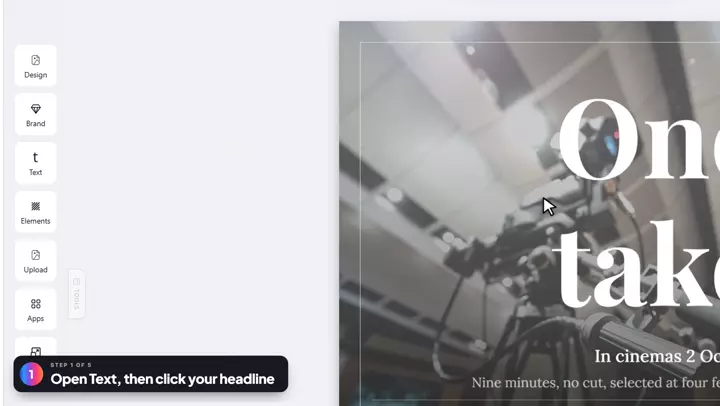
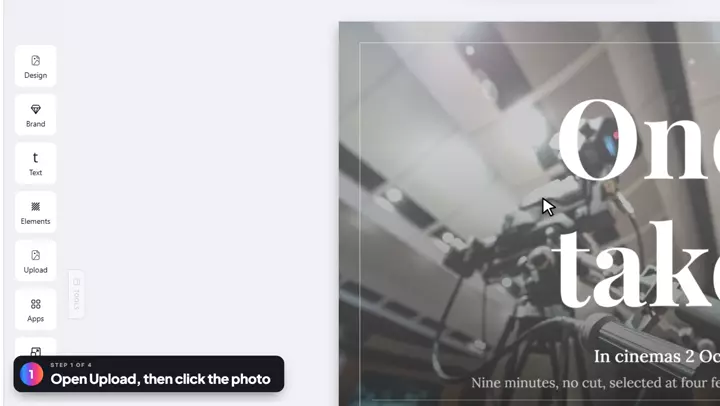
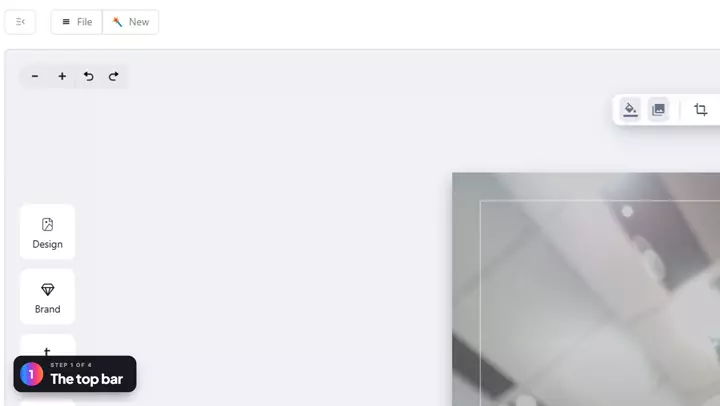
New to the Brand AI design editor? This one-minute tour shows where everything lives: the File menu, New and the saved status up top; the left rail with designs and templates, your brand kit, text, elements, uploads and apps; the toolbar that opens when you click anything; and Pages and Share on the right.
 1:17
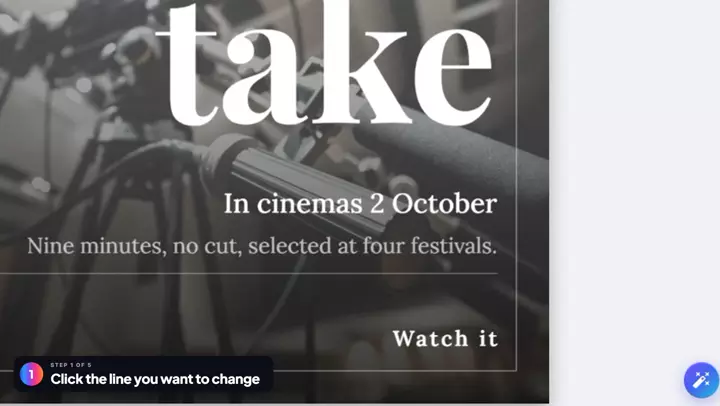
The design in the video is a sample film poster; the film is made up for the tutorial.
Read the transcript
New to the Brand AI editor? Here’s a quick tour of where everything lives, so you can find your way around. Up top: the File menu, New for a fresh design, and the status that tells you your work is saved. The left rail holds everything you can add: designs and templates, your brand, text, elements, uploads and apps. Hover over each one to peek inside. Click anything on your design, and a toolbar opens above it. The icons over the selection copy, lock, hide or delete it. On the right, Pages holds every page of your design. And Share is where you download, present or send a link.