How to use the Layers panel: select, hide, lock and reorder
Take control of everything on your design with the Layers panel in the Brand AI editor: open Layers at the bottom right, click a layer to select it, hide it and bring it back with the eye, lock it so it cannot move by accident, and drag layers up or down to change what sits in front.
 1:08
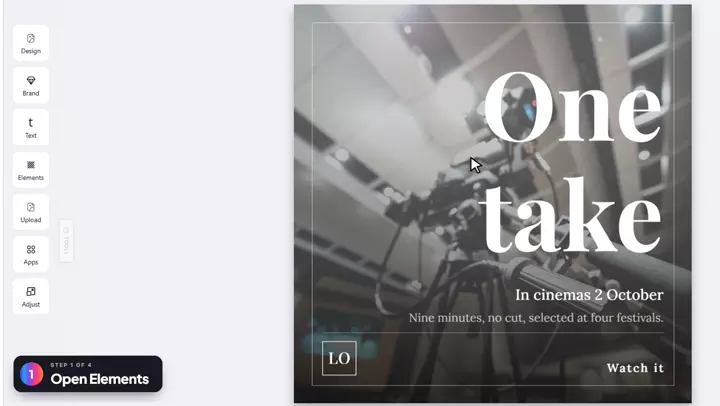
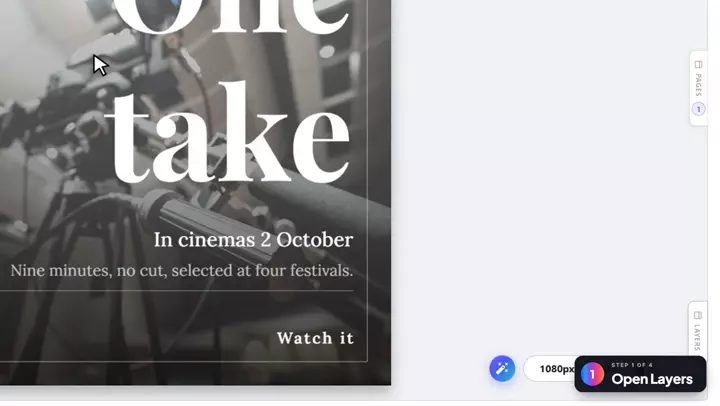
The design in the video is a sample film poster; the film is made up for the tutorial.
Read the transcript
When things overlap, Layers puts you in control. Here’s how to use the Layers panel in the Brand AI editor. Every text, photo and shape on your design is a layer. Open Layers, at the bottom right, to see them all. Click a layer in the list, and it is selected on your design. Handy when things sit on top of each other. The eye hides a layer while you work, and brings it back. The lock stops it moving by accident. To change what sits in front, drag a layer up or down the list. Higher up means in front.