How to add and style a shape
Add a shape from Elements in the Brand AI editor, colour it and give it an outline in the Shape tab, then size it and drag it into place. Badges, stickers and buttons start here.
 1:07
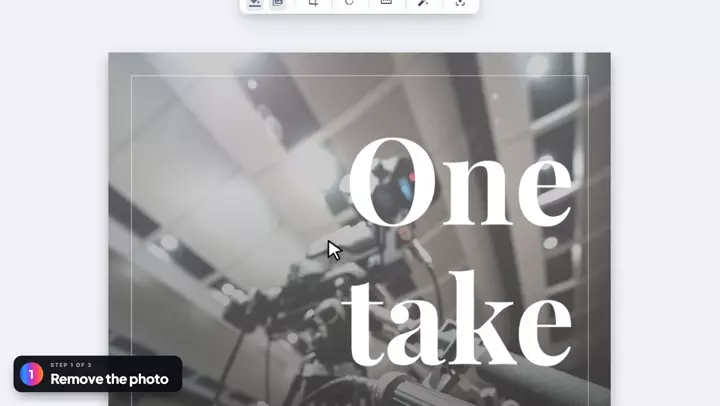
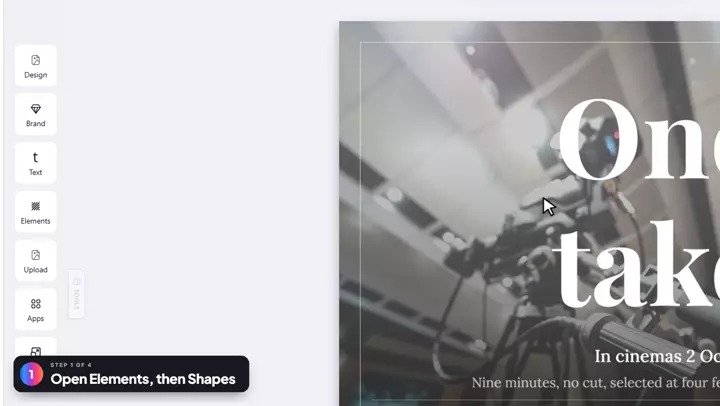
The design in the video is a sample film poster; the film is made up for the tutorial.
Read the transcript
Shapes turn a plain design into one that grabs attention. Here’s how to add one in the Brand AI editor, and style it. Open Elements on the left, then Shapes. Click a shape, and it lands in the middle of your design. Open the Shape tab to colour it, and give it an outline. Pull a corner to size it, and drag it where you want it.